
CRE-250 · Lesson 4 of 12 · 27 min
Encoding, bitrate and networks
Every live stream is a race against the network. A computer or phone must compress video and audio in real time and upload it continuously to a platform's ingest servers, which then transcode it into versions for viewers on different devices and connections. If the upload cannot keep up, frames drop and viewers see stutters, freezes or disconnections. Understanding encoding settings, bitrates, keyframes, latency and network reliability lets streamers deliver the best possible picture within their connection. This lesson covers how streaming delivery works, codecs, resolution and frame rate choices, bitrate and upload bandwidth, keyframe intervals and rate control, platform recommendations, latency, network reliability, multistreaming and simulcasting, and monitoring stream health.
How live delivery works
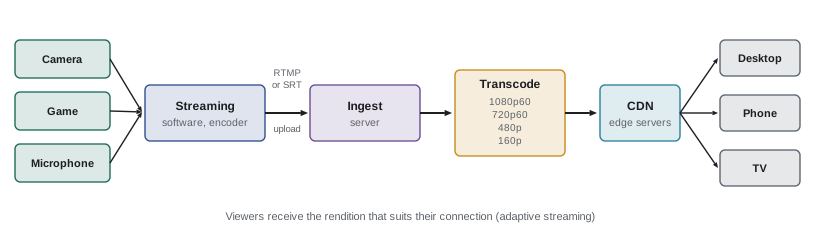
A live stream travels through several stages. The streaming software captures sources, composes scenes and encodes the result. It sends the stream to the platform's ingest server using a protocol, most commonly RTMP (Real-Time Messaging Protocol) or its encrypted form RTMPS; newer protocols such as SRT and WebRTC-based ingest (WHIP) offer lower latency or better resilience, and some platforms accept them. The platform then transcodes the stream into several renditions at different resolutions and bitrates, a ladder, and delivers them to viewers through content delivery networks using adaptive streaming formats such as HLS, so each viewer receives the best rendition their connection can handle. Some platforms let streamers send multiple renditions themselves, as with Twitch's Enhanced Broadcasting, offloading transcoding to the streamer's computer.
Codecs
A codec compresses video. H.264 (AVC) is universally supported by platforms and devices and remains the default for most streaming. HEVC (H.265) and AV1 compress more efficiently, delivering similar quality at lower bitrates or better quality at the same bitrate, and are increasingly supported for ingest on some platforms and with recent hardware encoders. Audio is usually encoded with AAC, typically at 128 to 192 kbps stereo, or Opus on some WebRTC-based systems. Check each platform's current ingest support before choosing a newer codec; at the time of writing, YouTube accepts H.264, HEVC and AV1, and Twitch supports HEVC and AV1 for some configurations through Enhanced Broadcasting, while standard Twitch ingest uses H.264.
Resolution and frame rate
Higher resolution and frame rate need more bitrate to look good. Fast-moving content, such as action games and sports, needs a high frame rate (60 fps) for smooth motion, and suffers most from compression artefacts. Slower content, such as talk shows, art and board games, looks fine at 30 fps, and the bitrate saved can improve detail. If bandwidth is limited, a sharp 720p60 stream usually looks better than a blocky 1080p60 stream at the same bitrate. Downscaling inside the streaming software, for example from a 1440p game output to a 1080p or 936p stream, reduces the encoding load. For vertical streams on mobile platforms, 1080 × 1920 or 720 × 1280 at 30 fps is common.
Bitrate and upload bandwidth
Bitrate is the amount of data per second in the stream, usually measured in kilobits per second (kbps) or megabits per second (Mbps). The total stream bitrate is the video bitrate plus the audio bitrate plus a small protocol overhead. The upload connection must sustain this continuously, with headroom for fluctuations and for anything else using the network, such as game traffic, voice chat and other household devices. A common rule is to use no more than about 70 to 80 % of the reliably measured upload speed for the stream.
Here \(U_{\text{reliable}}\) is the sustained upload speed measured over time, not a single best speed test. Multistreaming directly from the computer to several platforms multiplies the required upload, while restreaming services take one upload and distribute it.
Worked problem
Choosing a bitrate for an upload connection
A streamer's upload connection reliably measures 10 Mbps. They want to stream 1080p60 with 160 kbps audio, and voice chat uses about 0.5 Mbps. What is the maximum video bitrate they should use, and is 1080p60 sensible?
Show solution
- Budget for the stream: 0.75 × 10 Mbps = 7.5 Mbps total.
- Subtract voice chat: 7.5 − 0.5 = 7.0 Mbps available.
- Subtract audio: 7.0 − 0.16 = 6.84 Mbps, about 6,800 kbps for video.
- Typical recommendations for 1080p60 H.264 are about 6,000 kbps on Twitch standard ingest and higher on YouTube, so 6,000 kbps video is reasonable here.
Answer: About 6,000 kbps video plus 160 kbps audio fits comfortably; 1080p60 is sensible for most content, or 936p/720p60 for very fast action.
Platform recommendations
Platforms publish recommended settings, which change over time. At the time of writing, commonly cited figures include:
| Platform | Typical 1080p60 guidance | Notes |
|---|---|---|
| Twitch (standard) | About 6,000 kbps H.264 | Higher via Enhanced Broadcasting with HEVC or AV1 for eligible setups |
| YouTube Live | About 9,000–12,000 kbps H.264 (lower with HEVC/AV1) | Supports up to 4K60 and HDR |
| Kick | Similar to Twitch, around 6,000–8,000 kbps | Check current ingest guidance |
| TikTok LIVE (from PC) | Lower, often 2,500–6,000 kbps | Vertical 1080 × 1920 common |
Using the platform's own setup wizard or the streaming software's auto-configuration gives a starting point. For low-motion content, lower bitrates look fine; for high-motion content, more bitrate or lower resolution is needed.
Keyframes and rate control
Video compression stores occasional complete frames, called keyframes or I-frames, and in between stores only the changes. The keyframe interval is the time between keyframes. Platforms generally require a keyframe interval of 2 seconds, because their transcoders and adaptive streaming segments rely on it; incorrect intervals can cause buffering, poor quality or warnings in stream health dashboards. Rate control determines how bitrate varies: constant bitrate (CBR) keeps the bitrate steady, which suits live streaming because it avoids sudden spikes that the network cannot handle, and is what most platforms recommend. Variable bitrate (VBR) and constant quality modes suit local recordings, where bandwidth is not a constraint.
So at 60 fps with a 2-second interval, a keyframe occurs every \(60 \times 2 = 120\) frames. Encoder presets trade quality against processing: slower presets give better quality per bit but use more GPU or CPU. Profiles such as "high" and tuning options such as look-ahead and psycho-visual tuning can improve quality slightly. Streaming software's default presets for hardware encoders are good starting points.
Latency
Latency is the delay between something happening on stream and viewers seeing it. Traditional HLS delivery produced delays of 15 to 30 seconds; platforms now offer low-latency modes of a few seconds, and WebRTC-based systems can deliver under a second. Low latency makes chat interaction feel natural, since the streamer can respond to messages about what just happened, but it can reduce buffering protection for viewers on weak connections. Higher latency can be useful for competitive games, where a delay prevents stream sniping, viewers watching the stream to gain an advantage against the streamer; some streamers add an intentional delay for this reason. Choose the platform's low-latency setting for interactive shows and consider delays for competitive play.
Network reliability
Wired Ethernet connections are far more reliable than Wi-Fi for streaming, because Wi-Fi suffers interference and fluctuating speeds. Other reliability measures include quality of service (QoS) settings on the router to prioritize streaming traffic; avoiding large downloads, cloud backups and video streaming on the same network during streams; choosing a nearby ingest server, or letting the software choose automatically; and having a backup connection, such as a mobile hotspot, for important streams. For IRL and remote events, bonded cellular devices or services combine several mobile connections, and protocols such as SRT handle packet loss better than RTMP. Upload speeds on home connections vary: cable and DSL connections often have much lower upload than download speeds, while fibre connections are usually symmetrical.
Multistreaming and simulcasting
Multistreaming sends one stream to several platforms simultaneously, either directly from the streaming software, which multiplies upload bandwidth, or through a restreaming service that takes one upload and redistributes it. It can widen reach, but it complicates chat (several chats to read, though tools can merge them), splits community and income, and may conflict with platform terms: some platforms' partnership agreements restrict simultaneous streaming of the same content on other platforms, or have done so at various times. Read current terms carefully. Some streamers simulcast to a horizontal platform and a vertical platform with different layouts, using software that outputs two canvases.
Monitoring stream health
Streaming software shows dropped frames due to network (upload problems), skipped frames due to encoding lag (encoder overload), and rendering lag (the software cannot draw scenes fast enough). Platform dashboards show stream health, bitrate received, keyframe interval and warnings. Watching these indicators during streams, especially in the first minutes, catches problems before viewers complain. Common fixes include lowering bitrate for network drops, switching to a hardware encoder or faster preset for encoding lag, and simplifying scenes or capping game frame rates for rendering lag. Recording a short private test stream before important broadcasts confirms settings.
Bitrate and image quality
The bitrate a stream needs depends on how much the picture changes. A static talking head at 1080p30 can look clean at 4,500 kbps, while a fast first-person game with grass, particles and camera movement at 1080p60 can look blocky even at 6,000 kbps with H.264. Bits per pixel is a rough way to compare settings:
Worked problem
Comparing bits per pixel
Compare bits per pixel for 6,000 kbps at 1080p60 and 6,000 kbps at 720p60.
Show solution
- 1080p60: 6,000,000 / (1920 x 1080 x 60) = 6,000,000 / 124,416,000 = about 0.048.
- 720p60: 6,000,000 / (1280 x 720 x 60) = 6,000,000 / 55,296,000 = about 0.109.
- 720p60 gets more than twice the bits per pixel, so fast motion holds up better, although the image is less detailed.
Answer: About 0.048 at 1080p60 and 0.109 at 720p60; at a fixed bitrate, lower resolution often looks cleaner for fast games.
As a rough guide for H.264, values below about 0.05 bits per pixel tend to break up in fast motion, while talking heads stay acceptable at lower values. Newer codecs such as HEVC and AV1 achieve similar quality at lower bitrates, which is why platforms that accept them allow higher resolutions within similar bandwidth.
Encoder presets and hardware encoders
Software encoders such as x264 offer presets from very fast to very slow; slower presets give better quality at the same bitrate but use more processor power. Hardware encoders built into graphics cards, such as NVIDIA NVENC, AMD AMF and Intel Quick Sync, encode with little impact on game performance, and recent generations match or beat x264 at medium presets for streaming. Most single-PC streamers now use a hardware encoder. Watch for encoder overload warnings in the streaming software, which mean frames are being skipped because the encoder cannot keep up.
| Warning or statistic | What it means | Typical fix |
|---|---|---|
| Dropped frames (network) | Frames could not be sent in time | Lower bitrate, use wired connection, change ingest server |
| Skipped frames (encoding) | Encoder could not keep up | Faster preset, hardware encoder, lower resolution |
| Lagged frames (rendering) | Software could not render scenes in time | Simplify scenes, limit game frame rate, update drivers |
| High CPU usage | Processor near its limit | Hardware encoder, close other programs |
Testing a connection before going live
A speed test measures a moment, not the whole evening. Run several tests at the time of day you plan to stream, look at upload speed and jitter, and run a private test stream for at least 30 minutes while watching dropped frames. Many platforms offer a bandwidth test mode or an unlisted stream option for this purpose. Household activity such as cloud backups, game downloads and video calls can consume upload during a stream, so pause backups and use quality-of-service settings on the router where available.
Choosing settings when unsure
When unsure, start conservatively and increase quality step by step. Begin with 720p at 30 or 60 fps and a bitrate well inside the upload budget, run test streams, then raise resolution or bitrate only while dropped frames stay near zero and the picture holds up in fast scenes. Viewers forgive a slightly soft picture far more readily than buffering, frozen frames or audio that drops out, so reliability should always come first.
Common mistakes
MistakeSetting bitrate to the full upload speed.
InsteadUse about 70–80 % of reliable upload.
MistakeStreaming over Wi-Fi when Ethernet is possible.
InsteadUse a wired connection.
MistakeUsing variable bitrate for live streams.
InsteadUse constant bitrate as platforms recommend.
MistakeWrong keyframe interval.
InsteadSet 2 seconds unless the platform says otherwise.
MistakeForcing 1080p60 on a weak connection.
InsteadDrop to 720p60 or 30 fps for cleaner images.
Summary and key terms
- Streams are encoded, ingested by RTMP or newer protocols, transcoded and delivered adaptively.
- H.264 is universal; HEVC and AV1 are more efficient where supported.
- Match resolution and frame rate to content and bandwidth.
- Keep total bitrate within about 70–80 % of reliable upload.
- Use constant bitrate and 2-second keyframes.
- Latency trades interaction against buffering; delays prevent stream sniping.
- Wired networks, backups and health monitoring keep streams stable.
- RTMP
- Common protocol for sending streams to platforms.
- SRT
- Protocol resilient to packet loss.
- Ingest server
- Platform server that receives the stream.
- Transcoding
- Re-encoding a stream into several renditions.
- Bitrate
- Data per second in a stream.
- Keyframe
- Complete frame stored at intervals.
- CBR
- Constant bitrate rate control.
- Latency
- Delay between action and viewers seeing it.
- Stream sniping
- Watching a stream to gain an advantage against the streamer.
- Restreaming
- Service that relays one stream to several platforms.
Practice problems
Work each problem on paper first, then reveal the answer to check.
What does the platform do after ingest?
Show answer
Transcodes into a ladder of renditions and delivers adaptively.
Which codec is universally supported?
Show answer
H.264.
Why might 720p60 look better than 1080p60?
Show answer
More bits per pixel at limited bitrate.
Max stream bitrate for 8 Mbps reliable upload at 75 %?
Show answer
6 Mbps.
Typical keyframe interval required?
Show answer
2 seconds.
Frames between keyframes at 30 fps and 2 s?
Show answer
60.
Why use CBR for live?
Show answer
It avoids bitrate spikes the network cannot handle.
What is stream sniping?
Show answer
Watching a stream to gain an advantage in a game.
Why is Ethernet better than Wi-Fi?
Show answer
More stable speeds without interference.
What does "dropped frames due to network" indicate?
Show answer
Upload cannot keep up; lower bitrate.
Lesson quiz · 5 questions
Score 60% or more to complete this lesson.
Create a free account to save your progress, take quizzes and earn a certificate.