
PYTH-120 · Lesson 8 of 12 · 27 min
Scheduling jobs with cron and Task Scheduler
▶ Video coming soon A video version of this lesson is on the way.
A script that someone has to remember to run is only half automated. The till backup, the morning log check and the weekly report should run by themselves, at the right times, whether or not anyone is in the shop. On Linux the classic tool for this is cron, a service that has run scheduled jobs on Unix systems since the 1970s; modern Linux systems also offer systemd timers. On Windows the equivalent is Task Scheduler. This lesson explains how to describe a schedule in each, the traps that catch scripts when they run unattended, and how to make sure a scheduled job that fails does not fail silently.
Schedulers run on servers rather than in your browser, so the crontab and Task Scheduler examples are for reading. The exercises build a small cron schedule reader in Python, which is the best way to understand exactly what each field of a cron line means.
How cron works
The cron service wakes up every minute, reads the schedules it knows about, and starts any job whose time matches. Each user has a schedule table called a crontab, edited with crontab -e and listed with crontab -l; system-wide jobs live in /etc/crontab and in files under /etc/cron.d. Every line of a crontab is one job: five time fields followed by the command to run.
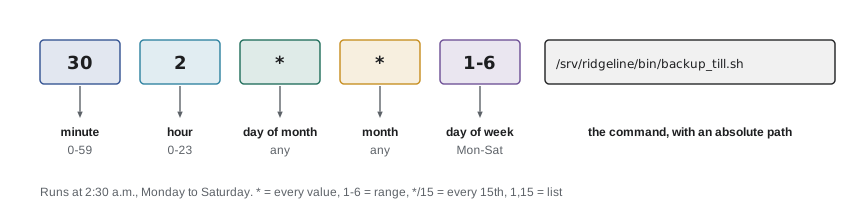
The five fields are, in order: minute (0 to 59), hour (0 to 23), day of the month (1 to 31), month (1 to 12) and day of the week (0 to 7, where both 0 and 7 mean Sunday). A * in a field means every value. A list such as 1,15 gives particular values, a range such as 1-5 gives a span, and a step such as */15 means every fifteenth value, so */15 in the minute field runs at 0, 15, 30 and 45 minutes past each hour. When both the day-of-month and day-of-week fields are restricted, cron runs the job when either one matches, a quirk worth remembering.
# Ridgeline server crontab (crontab -l for user jordan)
# m   h   dom mon dow   command
30    2   *   *   1-6   /srv/ridgeline/bin/backup_till.sh >> /var/log/ridgeline/backup.log 2>&1
0     7   *   *   *     /usr/bin/python3 /srv/ridgeline/bin/check_log.py --status 500
*/15  *   *   *   *     /srv/ridgeline/bin/check_disk.sh
0     6   *   *   1     /usr/bin/python3 /srv/ridgeline/bin/weekly_report.py --week last
0     3   1   *   *     /srv/ridgeline/bin/archive_month.sh
Read line by line, this crontab backs up the till files at 2:30 a.m. Monday to Saturday, checks the web log at 7:00 every day, checks disk space every 15 minutes, produces the weekly report at 6:00 on Mondays, and archives the previous month at 3:00 on the first day of each month. Shortcuts such as @daily, @weekly and @reboot are also accepted, and websites and tools that translate cron expressions into plain words are useful for checking a schedule before trusting it.
| Schedule | Cron fields | Meaning |
|---|---|---|
| Every day at 2:30 a.m. | 30 2 * * * | minute 30, hour 2, any day |
| Weekdays at 7:00 a.m. | 0 7 * * 1-5 | Monday to Friday |
| Every 15 minutes | */15 * * * * | minutes 0, 15, 30, 45 of every hour |
| Mondays at 6:00 a.m. | 0 6 * * 1 | day of week 1 is Monday |
| First of each month at 3:00 a.m. | 0 3 1 * * | day of month 1 |
| Twice a day | 0 8,20 * * * | 8:00 a.m. and 8:00 p.m. |
Reading cron fields in Python
Writing a small cron reader is the clearest way to see how the fields work. Each field becomes a set of allowed values: * means all of them, a list is split on commas, a range a-b gives every value from a to b, and a step after a slash keeps every nth value. A moment matches the schedule when its minute, hour, day, month and weekday are all in their sets, with cron's special rule for the two day fields.
def expand(field, low, high):
    """Turn one cron field into the set of values it allows."""
    values = set()
    for part in field.split(","):
        rng, _, step = part.partition("/")
        step = int(step) if step else 1
        if rng == "*":
            start, end = low, high
        elif "-" in rng:
            a, b = rng.split("-")
            start, end = int(a), int(b)
        else:
            start = end = int(rng)
        values.update(range(start, end + 1, step))
    return values

print(sorted(expand("*/15", 0, 59)))
print(sorted(expand("1-5", 0, 7)))
print(sorted(expand("8,20", 0, 23)))
print(sorted(expand("0-30/10", 0, 59)))[0, 15, 30, 45] [1, 2, 3, 4, 5] [8, 20] [0, 10, 20, 30]
Python's datetime gives a weekday with Monday as 0, while cron counts Sunday as 0. The isoweekday method helps: it numbers Monday 1 to Sunday 7, and taking the result modulo 7 gives cron's numbering, with Sunday as 0. Getting this conversion wrong is a classic bug that makes a Monday job run on Tuesday, which is exactly why it is worth testing schedule logic with known dates.
Try it yourself
Expand a cron field
Write expand(field, low, high) that returns the sorted list of values a cron field allows, supporting *, single numbers, ranges like 1-5, comma lists and steps like */15 or 10-30/10. low and high are the field's limits.
For example, expand("*/20", 0, 59) returns [0, 20, 40].
def expand(field, low, high):
    return [int(field)]

print(expand("*/20", 0, 59))
Try it yourself
Does the schedule match?
An expand(field, low, high) function that returns a set is provided. Write matches(schedule, when) that returns True if the five-field cron string schedule runs at the datetime when. Use cron's weekday numbering (Sunday 0, Monday 1), which is when.isoweekday() % 7. For simplicity, require all five fields to match.
For example, "30 2 * * 1-6" matches Monday 2 November 2026 at 2:30 but not Sunday 8 November at 2:30.
from datetime import datetime

def matches(schedule, when):
    return False

print(matches("30 2 * * 1-6", datetime(2026, 11, 2, 2, 30)))
The traps of running unattended
Scripts that work perfectly when you run them at the terminal often fail under cron, and almost always for the same few reasons. cron starts jobs with a very small environment: the PATH variable lists only a couple of system folders, so commands installed elsewhere are not found; the working directory is the user's home folder, not the folder the script lives in; and none of the settings from your login files, such as aliases or environment variables, are loaded. The cures are to use absolute paths for every program and file, set any environment variables the script needs at the top of the crontab or inside the script, and have scripts find their own folder rather than relying on the current directory.
Output is the second trap. Anything a cron job prints is, by default, emailed to the user, which on most small servers means it disappears, because no mail system is set up. Redirect output to a log file instead, as the backup line in the crontab above does: >> appends standard output to the log and 2>&1 sends error messages to the same place. Better still, have the script write its own log, as lesson 11 shows, and alert someone when it fails.
# Top of the crontab: settings every job will see
SHELL=/bin/bash
PATH=/usr/local/bin:/usr/bin:/bin
MAILTO=""
RIDGELINE_BACKUP_DIR=/mnt/backup/till
CRON_TZ=America/Vancouver
30 2 * * 1-6 /srv/ridgeline/bin/backup_till.sh >> /var/log/ridgeline/backup.log 2>&1
Time is the third trap. cron uses the server's time zone unless told otherwise, and many cloud servers run on UTC, so a job set for 2:30 may run in the middle of the afternoon local time. Daylight saving time causes a twice-yearly surprise: when clocks spring forward, times between 2:00 and 3:00 do not exist, and when they fall back, those times happen twice, so a 2:30 job might be skipped or run twice. Scheduling important jobs outside the 1:00 to 3:00 window, or running the server on UTC and converting times deliberately, avoids both problems.
The last trap is overlap. A job scheduled every 15 minutes that sometimes takes 20 minutes will eventually run two copies at once, which can corrupt files. A lock file prevents this: the script creates a file when it starts and refuses to run if the file already exists. On Linux the flock command does this safely around any command, as in flock -n /tmp/check_disk.lock /srv/ridgeline/bin/check_disk.sh.
systemd timers
Most modern Linux distributions use systemd to manage services, and systemd can schedule jobs too, with a pair of small configuration files: a service unit that says what to run and a timer unit that says when. Timers take more setup than a crontab line, but they log every run in the system journal, which journalctl shows, they can catch up on runs that were missed while the server was off, and they can add a random delay so that many servers do not all start at once.
# /etc/systemd/system/till-backup.service
[Unit]
Description=Back up the till exports

[Service]
Type=oneshot
User=backup
ExecStart=/srv/ridgeline/bin/backup_till.sh

# /etc/systemd/system/till-backup.timer
[Unit]
Description=Run the till backup every night except Sunday

[Timer]
OnCalendar=Mon..Sat *-*-* 02:30:00
Persistent=true

[Install]
WantedBy=timers.target

# enable it:  systemctl enable --now till-backup.timer
# check it:   systemctl list-timers ; journalctl -u till-backup.service
Persistent=true is the feature cron lacks: if the server was switched off at 2:30, the backup runs as soon as it starts again. The User line runs the backup under its own limited account, applying least privilege from lesson 7. For a handful of jobs on one server, cron is simpler and perfectly adequate; as the number of jobs grows, or when missed runs matter, systemd timers are worth the extra files.
Windows Task Scheduler
On Windows, Task Scheduler runs programs on a schedule or in response to events such as logging on or the computer starting. It has a graphical tool, taskschd.msc, where each task has a trigger (when), an action (what to run) and conditions and settings, such as whether to run only on mains power or to wake the computer. Tasks can also be created from the command line with schtasks or from PowerShell, which is better for scripts because the setup is recorded and repeatable.
$action  = New-ScheduledTaskAction -Execute 'pwsh.exe' `
            -Argument '-NoProfile -File C:\Scripts\Archive-TillFiles.ps1 -Days 30'
$trigger  = New-ScheduledTaskTrigger -Weekly -DaysOfWeek Sunday -At 9pm
$settings = New-ScheduledTaskSettingsSet -StartWhenAvailable -ExecutionTimeLimit (New-TimeSpan -Hours 1)
Register-ScheduledTask -TaskName 'Ridgeline\Archive till files' `
    -Action $action -Trigger $trigger -Settings $settings `
    -User 'OFFICE\svc-backup' -Password (Read-Host 'Service account password')

# The same with schtasks:
# schtasks /Create /TN "Ridgeline\Archive till files" /SC WEEKLY /D SUN /ST 21:00 /TR "pwsh -File C:\Scripts\Archive-TillFiles.ps1"
The same traps apply on Windows in slightly different forms. Scheduled tasks often run under a different account from yours, without your mapped network drives, so use full paths such as \\office-nas\backup rather than drive letters. StartWhenAvailable is the counterpart of systemd's Persistent: a task missed while the laptop was asleep runs when it wakes. The ExecutionTimeLimit setting stops a hung task from running forever. And each task's history tab, together with the script's own log, shows whether recent runs succeeded.
| Concern | cron | systemd timer | Task Scheduler |
|---|---|---|---|
| Where defined | crontab line | service and timer files | task in the scheduler library |
| Run missed jobs | No (anacron can) | Persistent=true | StartWhenAvailable |
| Run as another account | that user's crontab | User= in the service | task principal |
| Where results go | redirect to a log | system journal | task history and your log |
| Prevent overlaps | flock | one instance by default | setting: do not start a new instance |
Making sure failures are noticed
A scheduled job that fails quietly is worse than no job at all, because everyone believes the work is being done. Three habits close the gap. First, scripts must return a non-zero exit code on failure, so the scheduler records the run as failed. Second, each run should leave a record, a line in a log with the time and result. Third, something should check that the job actually ran: a script can send a message when it fails, and a simple heartbeat check, a separate job that complains when the backup's log has no fresh success line, catches the case where the job never started at all.
from datetime import datetime, timedelta

def overdue(last_success, now, every_hours, grace_minutes=30):
    """True if a job that should run every few hours has missed its window."""
    return now - last_success > timedelta(hours=every_hours, minutes=grace_minutes)

last = datetime(2026, 11, 3, 2, 31)        # the backup log's last success line
for now in [datetime(2026, 11, 3, 18, 0), datetime(2026, 11, 4, 2, 50), datetime(2026, 11, 4, 3, 15)]:
print(now, "overdue" if overdue(last, now, 24) else "ok")2026-11-03 18:00:00 ok 2026-11-04 02:50:00 ok 2026-11-04 03:15:00 overdue
Try it yourself
Is the job overdue?
Write overdue(last_success, now, every_hours, grace_minutes=30) returning True when more time than every_hours plus grace_minutes has passed between last_success and now, both datetimes. Exactly at the limit is not overdue.
For a daily job last successful at 2:31 on 3 November, it is not overdue at 3:01 on 4 November but is overdue at 3:02.
from datetime import datetime, timedelta

def overdue(last_success, now, every_hours, grace_minutes=30):
    return False

print(overdue(datetime(2026, 11, 3, 2, 31), datetime(2026, 11, 4, 3, 2), 24))
Worked problem
Scheduling the morning log check
Jordan's check_log.py from lesson 4 should run at 7:00 every day on the Linux server, which runs on UTC, and Jordan should hear about it when it finds server errors. Plan the schedule.
Show solution
- Decide the time zone: 7:00 in Kelowna or Boise is not 7:00 UTC, so set CRON_TZ to the shop's zone at the top of the crontab, or convert the time.
- Write the line 0 7 * * * with the full path to python3 and to the script.
- Redirect output to /var/log/ridgeline/check_log.log with >> and 2>&1 so nothing is lost.
- Rely on the script's exit code: wrap it in a small shell line that sends a message when the code is not 0.
- Add a heartbeat: a second job at 8:00 that checks the log has an entry from today and alerts if not.
Answer: A single crontab line with absolute paths and a time zone, output captured in a log, and two independent ways to notice a problem.
Common mistakes
MistakeUsing commands and files by name in cron jobs.
InsteadUse absolute paths; cron's PATH and working directory are minimal.
MistakeLetting cron email output that nobody receives.
InsteadRedirect output to a log with >> file 2>&1, or log from the script.
MistakeForgetting the server's time zone.
InsteadCheck it, set CRON_TZ where supported, or convert times deliberately.
MistakeScheduling important jobs between 1:00 and 3:00 a.m. local time.
InsteadDaylight saving changes can skip or repeat them; pick another time or use UTC.
MistakeAllowing a slow job to overlap the next run.
InsteadUse flock or a lock file, or the scheduler's single-instance setting.
MistakeAssuming a scheduled job is running because it was set up.
InsteadCheck exit codes, keep logs and add a heartbeat check.
Summary and key terms
- cron runs jobs from crontab lines: minute, hour, day of month, month and day of week, then the command.
- Fields accept *, numbers, ranges, lists and steps; Sunday is 0 in cron, while Python's weekday starts at Monday.
- Unattended jobs need absolute paths, an explicit environment, logged output and attention to time zones.
- systemd timers add logging, catch-up for missed runs and per-job accounts; Task Scheduler does the same on Windows.
- Prevent overlapping runs with locks, and notice failures with exit codes, logs and heartbeat checks.
- cron
- The Unix service that runs scheduled jobs.
- crontab
- A table of scheduled jobs, one per line, for a user or the system.
- cron expression
- The five time fields that describe when a job runs.
- step value
- A cron field such as */15 meaning every fifteenth value.
- systemd timer
- A systemd unit that starts a service on a schedule.
- Task Scheduler
- The Windows service and tool for running tasks on triggers.
- trigger
- The time or event that starts a scheduled task.
- lock file
- A file a job creates to stop a second copy from running at the same time.
- heartbeat check
- A separate check that a job has run recently.
- UTC
- Coordinated Universal Time, the time zone many servers use.
Practice problems
Work each problem on paper first, then reveal the answer to check.
Write a cron schedule for 6:45 a.m. on weekdays.
Show answer
45 6 * * 1-5
What does 0 */4 * * * mean?
Show answer
At minute 0 of every fourth hour: 0:00, 4:00, 8:00, 12:00, 16:00 and 20:00.
A script works at the terminal but under cron reports that python3 is not found. What is the likely fix?
Show answer
Use the absolute path, such as /usr/bin/python3, or set PATH in the crontab.
Why might a 2:30 a.m. job run twice in one night in the autumn?
Show answer
When clocks fall back, 2:30 occurs twice in local time.
Which systemd timer setting runs a job missed while the server was off?
Show answer
Persistent=true.
How can you tell that a nightly backup did not start at all, rather than failing?
Show answer
A heartbeat check that looks for a recent success entry in its log.
Lesson quiz · 5 questions
Score 60% or more to complete this lesson.
Create a free account to save your progress, take quizzes and earn a certificate.