
VIS-120 · Lesson 11 of 12 · 25 min
Backup, archiving and data security
Every drive will eventually fail, and every image maker who works long enough will face a lost card, a stolen laptop, an accidental deletion or a ransomware attack. The question is not whether something will go wrong but whether you will lose work when it does. A sound backup strategy makes data loss a minor inconvenience instead of a disaster; a sound archiving strategy keeps work accessible for decades. This lesson covers why data is lost, the 3-2-1 rule and its modern variants, backup methods and software, versioning and protection against ransomware, testing and recovery, long-term archiving and media migration, and the security practices that protect client images and accounts.
How data is lost
Common causes of data loss include:
- Hardware failure: hard drives fail at rates of roughly 1 to 2 % per year, more as they age; SSDs and memory cards also fail, sometimes without warning.
- Human error: accidental deletion, formatting the wrong card or drive, overwriting a file, or saving over a master.
- Software problems: corrupted catalogues, failed updates, sync services that propagate deletions to every device.
- Malware and ransomware: malicious software that encrypts files and demands payment, often spreading to every connected drive and network share.
- Theft and loss: laptops and drives stolen from cars, hotel rooms and studios; cards dropped on location.
- Disasters: fire, flood, power surges and other events that destroy everything in one place.
A backup plan must address all of these, which is why a single external drive next to the computer is not enough: theft, fire, a power surge or ransomware can take both at once.
The 3-2-1 rule
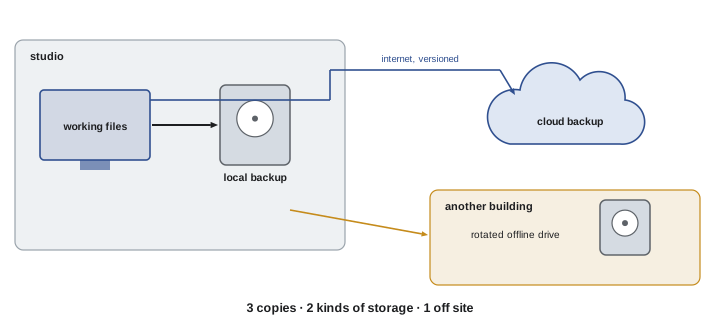
The widely used 3-2-1 rule recommends keeping at least three copies of important data (the original plus two backups), on at least two different types of storage or devices, with at least one copy off site. A common implementation for a photographer is: working files on the computer or a NAS, a local backup on a separate drive or NAS that runs automatically, and an off-site copy in the cloud or on drives rotated to another location. Variants extend the rule: 3-2-1-1-0 adds one copy that is offline or immutable (cannot be changed or deleted, protecting against ransomware) and zero errors after verification of backups. Professional productions often keep three copies from the moment of offload: two on separate drives on set and one sent to the post-production facility.
Backup methods
Backups can be made in several ways:
- Full backups copy everything each time: simple, but slow and storage-hungry for large collections.
- Incremental backups copy only files that changed since the last backup, saving time and space; restoring requires the last full backup plus each increment.
- Differential backups copy everything changed since the last full backup.
- Mirroring or synchronization keeps a destination identical to the source. Simple, but dangerous on its own: if a file is deleted or corrupted at the source, the mirror deletes or corrupts its copy too.
- Versioned backups keep previous versions of changed and deleted files for a set period, so earlier states can be restored. This is the most important feature for protecting against mistakes and ransomware.
Backup software such as Time Machine on macOS, File History and third-party tools on Windows, NAS backup applications and cloud backup services handle scheduling, versioning and verification automatically. Automation matters: backups that depend on remembering to plug in a drive are eventually forgotten. Cloud sync services like Dropbox or iCloud Drive are convenient but are not backups in themselves unless they keep version history long enough to recover from mistakes.
| Method | What it copies | Protects against deletion? | Notes |
|---|---|---|---|
| Full backup | Everything | Yes, if kept separately | Slow and large |
| Incremental | Changes since last backup | Yes, with retention | Efficient; restore needs chain |
| Mirror / sync | Keeps identical copy | No: deletions propagate | Useful only with versioning |
| Versioned backup | Changes plus history | Yes, within retention period | Best general protection |
| Immutable / offline copy | Locked or disconnected copy | Yes, including ransomware | Last line of defence |
Ransomware and immutable backups
Ransomware is a serious threat to creative businesses, which hold valuable, irreplaceable files and often have limited IT support. Once it runs on a computer, it encrypts every file it can reach, including connected external drives, mapped network shares and synced cloud folders. Defences include keeping systems and software updated, using reputable security software, being cautious with email attachments and links, using standard rather than administrator accounts for daily work, and above all keeping backups the malware cannot reach: offline drives disconnected after each backup, NAS snapshots that are read-only to ordinary users, and cloud backups with versioning or immutability (object lock) that prevents deletion for a set period. With such backups, recovery means wiping the infected systems and restoring clean copies, rather than paying criminals with no guarantee of results.
Testing and recovery
A backup that cannot be restored is worthless, and many people discover that their backups were incomplete, corrupted or misconfigured only when they need them. Good practice includes restoring sample files regularly to confirm they open correctly, checking backup logs and alerts for errors, verifying that new folders and drives are included in the backup set, and documenting the recovery procedure so that it can be followed under stress. A useful exercise is to imagine your main computer is stolen today and walk through exactly how you would restore your work, catalogue and settings onto a new machine, and how long it would take. Cloud restores of large archives can take days or weeks over the internet; some providers will ship a drive containing your data for faster recovery.
Worked problem
Designing a backup plan for a small studio
A two-person photography studio has 14 TB of data on a NAS (RAID 5), adding 4 TB per year. Their internet upload speed is 100 Mbps. Design a backup plan following 3-2-1-1-0.
Show solution
- Primary copy: the NAS, with hourly read-only snapshots kept for 30 days to recover from deletions and ransomware.
- Second copy: automated nightly versioned backup to a second NAS or large external drive array in the studio.
- Off-site copy: cloud backup with versioning and object lock. Initial upload of 14 TB at 100 Mbps takes about 13 days; afterwards, new data averages about 11 GB per day, roughly 15 minutes of upload.
- Offline copy: monthly backup to external drives that are disconnected and stored at a partner's home.
- Zero errors: review backup reports weekly and perform a test restore each quarter.
Answer: NAS with snapshots, a local versioned backup, a cloud backup with immutability and a rotated offline drive, with regular verification.
Archiving for the long term
Archiving differs from backup. Backups protect current work against loss and are kept for weeks or months; archives preserve completed work for years or decades, often removed from working storage. Long-term preservation faces three threats: media failure (drives, discs and tapes degrade), format obsolescence (files that future software cannot open) and loss of context (files nobody can identify or find). Strategies include:
- Keep multiple archive copies in different places, following 3-2-1 for archives as well.
- Migrate data to new media every few years, before drives age out, verifying with checksums. Hard drives in storage should be spun up periodically; magnetic tape (LTO) is designed for long life and is used by studios and broadcasters for large archives, though each LTO generation can read only one or two previous generations, so tapes must eventually be migrated too.
- Prefer open, well-documented formats (Lesson 3) and keep export masters in TIFF, DNG or standard video codecs alongside proprietary originals for key work.
- Store checksum manifests with archives and run fixity checks periodically to detect silent corruption, also called bit rot.
- Archive the context: catalogues, metadata, project files, contracts, releases and documentation, so the work remains meaningful and usable.
Optical discs, once common for archives, are now rarely used for large collections because of their small capacity, although archival-grade discs remain an option for small sets of critical files.
Security and privacy
Client images often contain sensitive personal information: faces of children at a school, wedding guests, medical or legal subjects, unreleased products or confidential locations. Protecting them is a professional and often legal obligation. Practices include encrypting laptops and portable drives (FileVault, BitLocker or hardware-encrypted drives) so that a stolen device does not expose files; using strong, unique passwords stored in a password manager and enabling multi-factor authentication on email, cloud storage, gallery and social media accounts; sharing files with clients through secure gallery or transfer services with expiry dates and passwords rather than public links; limiting who has access to raw files; and deleting client files according to contract terms or retention policies when they are no longer needed. Removing GPS location data from images before publishing protects subjects and photographers, for example when photographing at someone's home.
In Canada, organizations subject to PIPEDA must protect personal information with security safeguards appropriate to its sensitivity and must report breaches of security safeguards that create a real risk of significant harm to the Privacy Commissioner and affected individuals; Quebec's Law 25 imposes similar breach reporting duties.
Backing up catalogues, settings and software
A complete recovery needs more than image files. Catalogue databases, preview files, presets, custom camera and printer profiles, LUTs, fonts, plug-ins, licence keys and project templates represent years of work and configuration. Include them in backups, and keep a written list of the software, versions and licences needed to rebuild a working system. Catalogue applications create their own backups, often weekly, which should be stored on a different drive from the catalogue itself. Exporting presets and profiles to a dedicated folder that is backed up with everything else makes migration to a new computer much easier.
Backup for video projects
Video projects stress backup systems because of their size. Camera originals are usually backed up immediately at offload and treated as read-only. Project files, which are small but contain the edit, are saved and backed up very frequently, often automatically every few minutes by the editing software and nightly to backup storage. Render files, caches and proxies can usually be regenerated and may be excluded from backups to save space, as long as originals and project files are safe. At the end of a project, an archive package typically includes camera originals or a consolidated subset, the final project file, graphics, music licences, audio stems, final masters and deliverables, with a document explaining how to restore the project.
Business continuity
For a business, backup is part of a wider continuity plan: how would you keep serving clients if your studio were inaccessible for a week, or your main computer and drives were stolen the day before a delivery? A continuity plan lists critical systems and data, where backups are and how to access them, which equipment could be borrowed or rented, how to contact clients, and who can act if the owner is unavailable. Insurance policies covering equipment, data recovery costs and business interruption complement the technical measures. Writing such a plan takes an afternoon; it may save a business.
Insurers, clients and auditors increasingly ask how creative businesses protect data. Being able to describe your backup plan, encryption practices and retention policy in a few clear sentences, and to show that they are followed, builds trust and can be a competitive advantage when bidding for corporate and institutional work.
Common mistakes
MistakeRelying on one external drive next to the computer.
InsteadFollow 3-2-1 with an off-site copy.
MistakeTreating a sync service or mirror as a backup.
InsteadUse versioned backups that keep deleted and changed files.
MistakeLeaving backup drives permanently connected.
InsteadKeep an offline or immutable copy safe from ransomware.
MistakeNever testing restores.
InsteadRestore samples regularly and document the procedure.
MistakeStoring archive drives for a decade untouched.
InsteadMigrate and fixity-check archives periodically.
Summary and key terms
- Data is lost through hardware failure, human error, malware, theft and disasters.
- 3-2-1 keeps three copies on two kinds of storage with one off site.
- Versioned backups protect against deletion; mirrors alone do not.
- Offline and immutable copies defend against ransomware.
- Backups must be tested by restoring files.
- Archives need migration, open formats, fixity checks and context.
- Encryption, strong authentication and secure sharing protect client data.
- 3-2-1 rule
- Three copies, two media types, one off site.
- Incremental backup
- Backup of changes since the last backup.
- Mirror
- An identical copy kept in sync with the source.
- Versioning
- Keeping previous versions of files.
- Ransomware
- Malware that encrypts files for ransom.
- Immutable backup
- Backup that cannot be altered or deleted for a period.
- Test restore
- Recovering files to prove backups work.
- Fixity check
- Verifying archived files against stored checksums.
- Bit rot
- Silent gradual corruption of stored data.
- Multi-factor authentication
- Login requiring more than a password.
Practice problems
Work each problem on paper first, then reveal the answer to check.
State the 3-2-1 rule.
Show answer
Three copies, two kinds of storage, one off site.
What do the extra 1 and 0 in 3-2-1-1-0 mean?
Show answer
One offline or immutable copy; zero errors after verification.
Why is a mirror dangerous on its own?
Show answer
Deletions and corruption propagate.
What does incremental backup copy?
Show answer
Files changed since the last backup.
How does ransomware reach backups?
Show answer
Through connected drives, shares and synced folders.
Initial upload of 10 TB at 200 Mbps?
Show answer
About 4.6 days.
Why test restores?
Show answer
To prove backups are complete and usable.
How does archiving differ from backup?
Show answer
Archives preserve completed work long term.
What is a fixity check?
Show answer
Comparing archived files with stored checksums.
Name two security practices for client files.
Show answer
Encrypt drives, use MFA, secure galleries, remove GPS.
Lesson quiz · 5 questions
Score 60% or more to complete this lesson.
Create a free account to save your progress, take quizzes and earn a certificate.