
CRE-211 · Lesson 10 of 12 · 25 min
Publishing: descriptions, chapters, playlists and end screens
A finished edit is not yet a finished video. How it is published, with its description, chapters, captions, playlists, end screens, cards, audience settings and timing, affects whether viewers find it, understand it, stay with it and continue to watch more. These tools are easy to neglect after the effort of production, but they add up to a meaningful difference across a channel's library. This lesson covers the upload checklist, writing descriptions, chapters, captions and translations, playlists and series, end screens and cards, audience and content settings, scheduling and premieres, community posts and promotion, and maintaining a library of older videos. Platform features change frequently, so details here are described as they stand at the time of writing.
The upload checklist
A consistent checklist prevents mistakes and makes publishing efficient. A typical long-form upload includes:
- Upload the final master file and confirm it processes in high definition and 4K where applicable.
- Add the final title and thumbnail (Lesson 9).
- Write the description, with links, credits and chapters.
- Upload or check captions and add translations if planned.
- Set the audience setting, including whether the video is made for kids.
- Declare paid promotion if the video includes a sponsorship (Lesson 12).
- Add the video to relevant playlists.
- Add end screens and cards.
- Choose visibility: public, scheduled, premiere, unlisted for review, or private.
- Check monetization settings, including mid-roll advertisement placement for longer videos.
- After publishing, pin a comment, share to other channels and monitor early comments.
Saving upload defaults in YouTube Studio, such as standard description text, tags, category and license, saves time on every video.
Writing descriptions
The description provides context for viewers and information for search. The first one or two lines are visible before viewers expand the description, and also appear in some search results, so they should summarize the video and its value clearly, including the main keyword phrase naturally for search-focused videos. The rest of the description can include a fuller summary, chapters, links to sources and resources mentioned, credits for music, stock and collaborators, affiliate and sponsor links with clear disclosure, links to related videos and playlists, and links to the creator's other channels. Descriptions longer than a few sentences help search and provide a useful reference, but keyword stuffing, repeating search terms unnaturally, is against YouTube's policies and helps no one. For educational and documentary videos, listing sources builds credibility and allows viewers to check claims.
| Description section | Purpose |
|---|---|
| First two lines | Summary and value, visible before expanding |
| Chapters | Timestamps for navigation |
| Sources and resources | Credibility and further reading |
| Credits | Music, stock, archival, collaborators |
| Sponsor and affiliate links | With clear disclosure |
| Related videos and playlists | Encourage further viewing |
| Channel links | Other platforms, newsletter, membership |
Chapters
Chapters divide a video's progress bar into labeled sections, letting viewers see the structure and jump to the part they need. Creators add chapters by listing timestamps and titles in the description. At the time of writing, chapters require the first timestamp to be 0:00, at least three timestamps in ascending order, and each chapter to be at least 10 seconds long; YouTube can also generate automatic chapters. Chapters come directly from the segment outline (Lesson 4), and clear, descriptive chapter titles help both viewers and search, since YouTube can show chapters in search results, sometimes linking directly to the relevant section. Some creators worry that chapters let viewers skip content, but they generally improve satisfaction, especially for tutorials and long explainers, and viewers who find exactly what they need are more likely to return.
Worked problem
Writing chapters from an outline
A 15-minute grinder comparison has segments starting at 0:00 (opening), 0:45 (why grinders matter), 2:10 (the test setup), 4:30 (taste test), 8:05 (consistency test), 11:20 (durability and noise) and 13:40 (verdict). Write the chapter list.
Show solution
- Start with 0:00 and use the segment start times in order.
- Give each chapter a clear, descriptive title.
- Check that each chapter is longer than 10 seconds and there are at least three.
Answer: 0:00 Can a 30-dollar grinder compete? · 0:45 Why the grinder matters most · 2:10 How we tested · 4:30 Blind taste test · 8:05 Grind consistency · 11:20 Durability and noise · 13:40 The verdict.
Captions and translations
Captions make videos accessible to deaf and hard-of-hearing viewers and help viewers watching without sound, in noisy places or in a second language. YouTube generates automatic captions for many languages, but they contain errors, especially with names, technical terms, accents and overlapping speech. Uploading an accurate caption file, such as an SRT or VTT file exported from editing software or a captioning service, or editing the automatic captions in YouTube Studio, gives viewers a much better experience. Translated titles, descriptions and subtitles, and in some cases multi-language audio tracks with dubbed or AI-assisted voices, can open a channel to international audiences; YouTube has expanded multi-language audio and automatic dubbing features for eligible channels. Accuracy matters: poor machine translation can confuse or embarrass, so review translations where possible, especially for important videos.
Playlists and series
Playlists group videos into collections that play one after another, increasing session time and helping viewers explore a channel. Useful playlists include series, such as a multi-part build or a course; topics, such as all videos about a particular camera; formats, such as reviews or tutorials; and curated "start here" collections for new viewers. Give playlists descriptive titles and descriptions, order videos logically, and feature key playlists on the channel page. YouTube's series playlist option, and the course features available to some educational channels, mark videos as part of an official sequence, which can influence recommendations at the end of each video. Linking related videos in playlists, descriptions and end screens creates pathways through the channel.
End screens and cards
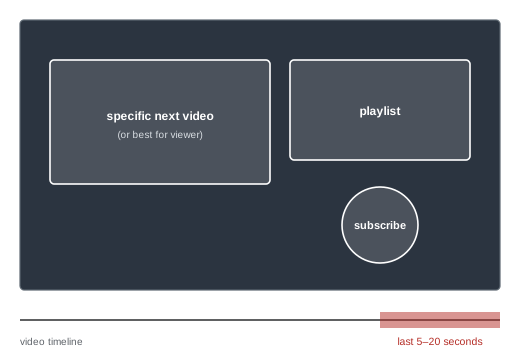
End screens are interactive elements shown in the final seconds of a video, linking to another video, a playlist, the channel's subscribe button, another channel, or an approved website. At the time of writing, end screens can appear in the last 5 to 20 seconds of videos at least 25 seconds long, with up to four elements. Effective end screens point to one specific next video that follows naturally from the current one, introduced verbally in the ending (Lesson 5), along with a subscribe element; leaving space in the final frames for the elements, rather than covering them with busy visuals, improves their visibility. Cards are small notifications that can appear at any point in a video, linking to related videos, playlists, channels, polls or links; at the time of writing, up to five cards can be added. Use cards sparingly, at moments where a related video genuinely adds value, such as "I explain how this works in more detail here."
Audience and content settings
Every upload must be designated as made for kids or not. Under the United States Children's Online Privacy Protection Act (COPPA) and YouTube's policies, which apply to creators worldwide, videos directed at children are restricted: personalized advertisements, comments and some features are disabled. Creators must judge honestly whether a video is directed at children, considering its subject, presentation, characters and intended audience, since misdesignation can lead to enforcement. Other settings include age restrictions for mature content, the declaration of altered or synthetic content where realistic AI-generated or modified material is used, allowing or restricting embedding, comment moderation settings, the category, the license (standard YouTube license or Creative Commons), recording date and location, and whether to show viewer counts. Check these settings for every upload rather than relying on defaults.
Scheduling and premieres
Videos can be published immediately, scheduled for a specific time, or released as a premiere, which shows a countdown and lets viewers watch together with live chat at a set time, followed by the video becoming a normal upload. Consistent publishing times help regular viewers know when to expect new videos, and scheduling allows teams to prepare promotion. The best time depends on when the channel's audience is active, which YouTube Analytics shows. Some creators upload as unlisted first to check processing, captions and end screens before making the video public. Premieres suit videos the audience anticipates, such as major projects or series finales.
Community posts and promotion
Promotion extends a video's reach beyond the platform's recommendations. Community posts on the channel, available to channels meeting eligibility criteria, can preview upcoming videos, share behind-the-scenes images, run polls and announce new uploads. Short clips or trailers on short-form platforms (CRE-210), newsletters, podcasts, social media posts, collaborators' channels and relevant online communities can all drive viewers, as long as promotion respects each community's rules and offers value rather than spam. Pinning a comment with a question, a correction or a link to a related video encourages discussion. Responding to early comments signals engagement and builds community (CRE-301).
Maintaining a library
A long-form channel's library is an asset that keeps working. Periodically review older videos: update descriptions with new links and resources; add chapters, captions and translations to videos that lack them; refresh titles and thumbnails of evergreen videos that are underperforming (Lesson 9); add older videos to new playlists; correct errors with pinned comments or edits; and update end screens to point to newer, related videos. Some creators remake their most popular older videos when information has changed or production standards have improved. A well-maintained library brings viewers in through search and recommendations long after videos were published.
Search optimization in practice
For search-driven videos, several publishing elements help YouTube understand what a video is about and match it to queries. The title is the strongest signal, followed by the description, chapters, captions and the spoken words themselves, which YouTube can transcribe. Tags, keywords added in YouTube Studio, play a minor role at the time of writing, mainly helping with common misspellings. Rather than optimizing every field mechanically, make sure the video genuinely answers the query, that the title and description use the words viewers actually search for, and that the video satisfies viewers who arrive from search, since satisfaction influences future ranking.
Responding to early performance
The first hours and days after publishing reveal how packaging and content are performing relative to the channel's norms. YouTube Studio shows real-time views and comparisons with typical performance. If click-through rate is unusually low, consider adjusting the thumbnail or title (Lesson 9); if retention drops sharply at a particular point, note the lesson for future edits; if comments raise errors or questions, respond with a pinned comment or a correction. Avoid making many changes at once, which makes it impossible to tell what helped.
Comments and community after publishing
Comments are both feedback and community. In the first hours after publishing, reading and responding to comments shows viewers that the creator listens and encourages discussion. Pin a comment that adds value, such as a correction, a question for viewers, or a link to a related video. Use moderation tools to filter spam, scams and abusive comments, including blocked words lists and held-for-review settings, and consider appointing trusted moderators as the channel grows (CRE-301). Comments also reveal ideas for future videos, misunderstandings to clarify and questions to answer in follow-ups.
Accessibility settings and checks
Beyond captions, accessibility in publishing includes descriptive titles and chapter names that help screen reader users navigate, descriptions that summarize visual content, and avoiding thumbnails or videos with flashing effects. Checking that captions sync correctly and identify speakers in multi-person videos improves the experience for deaf and hard-of-hearing viewers.
Common mistakes
MistakePublishing without a checklist.
InsteadFollow a consistent upload checklist with saved defaults.
MistakeLeaving descriptions empty or stuffed with keywords.
InsteadWrite useful summaries, credits, sources and links.
MistakeRelying on uncorrected automatic captions.
InsteadUpload or edit accurate captions.
MistakeCovering end screens with busy visuals.
InsteadLeave space and point to a specific next video.
MistakeMisdesignating made-for-kids settings.
InsteadJudge the intended audience honestly for every upload.
Summary and key terms
- An upload checklist covers packaging, description, captions, settings, playlists and end screens.
- Descriptions should lead with a clear summary and include sources, credits and links.
- Chapters start at 0:00, need at least three and help viewers and search.
- Accurate captions and translations widen access.
- Playlists and series create pathways through the channel.
- End screens and cards point viewers to specific next videos.
- Audience settings, scheduling, promotion and library maintenance complete publishing.
- Upload defaults
- Saved settings applied to every upload.
- Description
- Text accompanying a video with context and links.
- Chapters
- Labeled timestamps dividing a video.
- SRT file
- Common caption file format.
- Multi-language audio
- Additional dubbed audio tracks.
- Playlist
- Ordered collection of videos.
- End screen
- Interactive elements in a video's final seconds.
- Card
- Notification linking to related content during a video.
- Made for kids
- Designation for content directed at children.
- Premiere
- Scheduled first showing with live chat.
Practice problems
Work each problem on paper first, then reveal the answer to check.
Name five items on an upload checklist.
Show answer
Packaging, description, captions, audience, paid promotion, playlists, end screens, visibility.
Why do the first lines of a description matter?
Show answer
They are visible before expanding and appear in search.
What are the chapter requirements?
Show answer
Start at 0:00, at least three, each at least 10 seconds.
Why correct automatic captions?
Show answer
They contain errors with names and terms.
Name three useful kinds of playlist.
Show answer
Series, topics, formats, start here.
When can end screens appear?
Show answer
In the last 5–20 seconds of videos at least 25 seconds long.
How many cards can be added?
Show answer
Up to five.
What does made for kids disable?
Show answer
Personalized ads, comments and some features.
What is a premiere?
Show answer
A scheduled first showing with live chat.
Name three library maintenance tasks.
Show answer
Update descriptions, add chapters and captions, refresh packaging, update end screens.
Lesson quiz · 5 questions
Score 60% or more to complete this lesson.
Create a free account to save your progress, take quizzes and earn a certificate.