
ROB-110 · Lesson 1 of 12 · 33 min
Linux and the command line for robotics
Open the case of almost any research robot, warehouse robot or university competition robot and you will find a small computer running Linux. The robot's software, from the drivers that talk to its motors to the programs that plan its path, is installed, started, configured and repaired through a text-based command line. This course teaches you to program robots with Python and the Robot Operating System 2, known as ROS 2, and every one of those skills rests on being comfortable at a Linux terminal. In this lesson you will learn why Linux dominates robotics, how a Linux system is organized, how to move around the file system, run and combine commands, use environment variables and install software safely. By the end you will be able to log in to a robot's computer, find your way around and prepare it for ROS 2.
You do not need to have used Linux before. You do need the Python basics from CMPUT-174: variables, functions, loops and simple data structures. Wherever this course shows commands, type them yourself on a Linux computer, a virtual machine or a single-board computer such as a Raspberry Pi. Reading about the command line is like reading about swimming: it only makes sense once you are in the water.
Why robots run Linux
Robots need an operating system that is free to install on many machines, that runs on small, low-power processors as well as powerful workstations, that gives programmers full control of the hardware and that can be inspected and modified when something goes wrong. Linux meets all of these needs. It is open source, so a robotics company can ship it on thousands of robots without license fees and can read or patch the source code of a misbehaving driver. It runs on the x86 processors in laptops and on the ARM processors in boards such as the Raspberry Pi and NVIDIA Jetson modules that are common on mobile robots. And it can be stripped down to a minimal system with no graphical desktop, which saves memory, power and start-up time on a robot that has no screen.
Linux has also become more suitable for control. For years, robots that needed tight timing ran a separate real-time operating system or applied a set of real-time patches called PREEMPT_RT to the Linux kernel. Those patches were merged into the main Linux kernel in version 6.12, released in late 2024, so a standard kernel can now be configured for much more predictable timing. Hard real-time control loops still often run on dedicated microcontrollers, as you will see in ROB-200 and ROB-320, but the main robot computer increasingly runs a single Linux system.
The deciding factor for most robot programmers, though, is ROS 2. ROS 2 is a large collection of open-source libraries and tools for building robot software, and its main supported platform is Ubuntu Linux. Each ROS 2 release, called a distribution, is built and tested against a specific Ubuntu long-term support version. Releases in even-numbered years are long-term support releases maintained for five years; releases in odd-numbered years are supported for about a year and a half. Choosing a distribution therefore also chooses your version of Ubuntu.
| ROS 2 distribution | Released | Main Ubuntu platform | Support ends | Type |
|---|---|---|---|---|
| Humble Hawksbill | May 2022 | 22.04 (Jammy) | May 2027 | Long-term support |
| Jazzy Jalisco | May 2024 | 24.04 (Noble) | May 2029 | Long-term support |
| Kilted Kaiju | May 2025 | 24.04 (Noble) | December 2026 | Short-term |
| Lyrical Luth | May 2026 | 26.04 (Resolute) | May 2031 | Long-term support |
For a new project in late 2026, the usual choice is Lyrical Luth on Ubuntu 26.04, or Jazzy Jalisco on Ubuntu 24.04 if you depend on packages that have not yet been released for Lyrical. The examples in this course work on both. A short-term release such as Kilted is useful for trying new features, but it reaches end of life quickly, so it is rarely the right choice for a robot you need to maintain. ROS 2 also runs on Windows 11 and some other Linux distributions, but most tutorials, packages and robots assume Ubuntu, and so do we.
How a Linux system is organized
It helps to picture a Linux system as layers. At the bottom is the hardware: processor, memory, storage, network interfaces and the USB, serial and camera ports that connect sensors and motor controllers. Above it sits the kernel, the core program that manages memory, schedules processes, and talks to the hardware through device drivers. The kernel presents each device as something programs can open, often as a special file under the /dev directory: a USB serial adapter might appear as /dev/ttyUSB0 and a camera as /dev/video0. Above the kernel run system services, started at boot by an init system called systemd, which handles networking, logging and remote login. At the top are the programs you run, including the shell that interprets your commands and, eventually, your robot software.
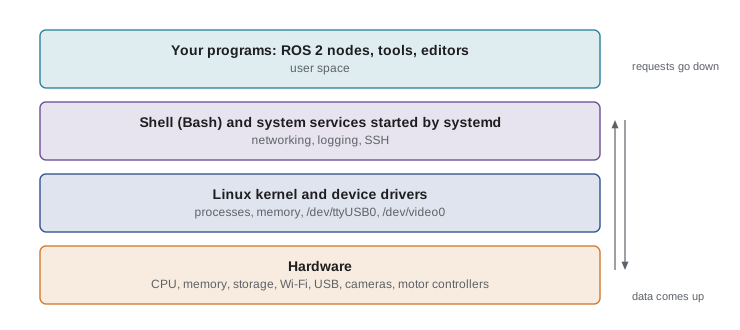
A Linux distribution, such as Ubuntu, Debian or Fedora, bundles the kernel with a selection of services, libraries, tools and a package manager for installing more. Ubuntu comes in a desktop edition with a graphical interface and a server edition without one. On a robot you will often install the server edition, or a minimal image made for your board, and connect to it from a laptop over the network.
The shell and the file system
The shell is a program that reads the commands you type, runs them and shows their output. Ubuntu's default shell is Bash. You reach it by opening a terminal window on a desktop or by logging in remotely, as lesson 2 explains. The shell shows a prompt such as student@robot:~$, which tells you the user name, the computer's host name, the current directory and, with the dollar sign, that you are an ordinary user rather than the administrator.
Everything in Linux lives in a single tree of directories that starts at the root, written as a single forward slash. There are no drive letters. A path such as /home/student/ros2_ws/src lists the directories from the root down. A path that starts with a slash is absolute; a path that does not, such as ros2_ws/src, is relative to the current directory. The tilde is shorthand for your home directory, a single dot means the current directory and two dots mean its parent. A few top-level directories matter to robot programmers:
- /home holds each user's personal directory, where you will keep your ROS 2 workspaces and code.
- /etc holds system configuration files, such as network settings and the rules that set permissions on devices.
- /dev holds device files for serial ports, cameras, joysticks and other hardware.
- /opt holds optional add-on software. A ROS 2 installation from Ubuntu packages lives in /opt/ros followed by the distribution name, for example /opt/ros/lyrical.
- /var/log holds system logs, and /tmp holds temporary files that disappear at reboot.
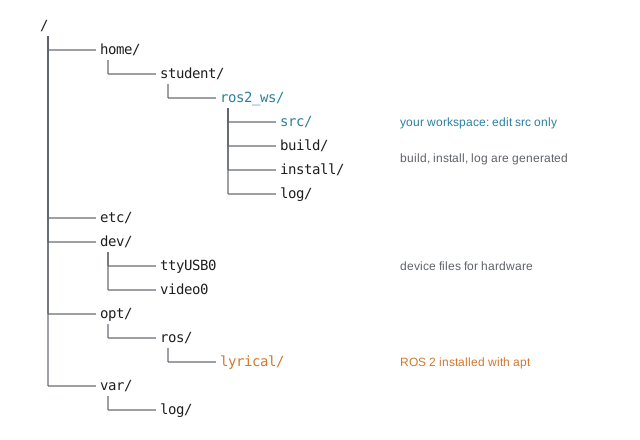
The commands below show a first session at the prompt. Lines starting with a hash are comments and are ignored by the shell.
# where am I?
pwd
# list files, long format, including hidden ones
ls -la
# make a workspace with a src folder inside
mkdir -p ~/ros2_ws/src
cd ~/ros2_ws/src
# go up one level, then back home
cd ..
cd ~
The ls command lists a directory. Its options, written after a dash, change its behavior: -l gives a long listing with permissions, owner, size and date, and -a includes hidden files, whose names begin with a dot, such as the .bashrc file that configures your shell. The mkdir command makes directories, and its -p option creates any missing parent directories too. Most commands accept --help, and the man command, as in man ls, opens the full manual page. Pressing the Tab key completes file and command names, which saves typing and prevents spelling mistakes; pressing the up arrow recalls earlier commands.
Essential commands
A small set of commands covers most daily work on a robot. You do not need to memorize them all today: keep the table handy and they will become automatic within a few weeks of practice.
| Command | What it does | Robot example |
|---|---|---|
| ls, cd, pwd | List, change and show directories | Find your workspace and launch files |
| cp, mv, rm | Copy, move or rename, and delete files | Back up a configuration file before editing it |
| mkdir, rmdir | Make and remove directories | Create a new package folder |
| cat, less, head, tail | Show files, page through them, show the start or end | Read a log; tail -f follows it live |
| nano, vim | Edit text files in the terminal | Change a parameter file on the robot |
| grep | Search for text | Find every file that mentions cmd_vel |
| find | Search for files by name, type or age | Locate a missing launch file |
| df, du | Show disk space and space used | Check whether recorded data is filling the card |
| top, htop | Show running processes and load | See which node is using all the CPU |
| sudo | Run one command as the administrator | Install packages or edit system settings |
Be careful with rm. Linux has no recycle bin at the command line: rm deletes immediately, and rm -r deletes a directory and everything in it. A classic mistake is to type a path with a stray space or a wrong wildcard and remove far more than intended. Before deleting with a wildcard, run ls with the same pattern to see exactly what it matches.
Pipes, redirection and finding things
Linux commands are designed to do one job well and to be combined. The output of one command can be sent into another with the pipe symbol, a vertical bar. For example, ls /dev | grep tty lists the devices and keeps only lines containing tty, which is a quick way to find a newly plugged-in serial adapter. Output can also be redirected to a file: a single greater-than sign writes or overwrites a file, and two of them append to it. An error stream is kept separate from normal output, so 2> sends only error messages to a file. These tools let you build useful one-line programs without writing any code.
# which serial devices exist right now?
ls /dev | grep -E 'ttyUSB|ttyACM'
# search a workspace for a topic name
grep -rn 'cmd_vel' ~/ros2_ws/src
# keep the last 50 lines of a log in a file
tail -n 50 /var/log/syslog > ~/last50.txt
# count launch files in the workspace
find ~/ros2_ws/src -name '*.launch.py' | wc -l
The grep command searches text for a pattern. Its -r option searches a whole directory tree, -n prints line numbers and -i ignores case. The find command searches for files by name, type, size or age, and its results can be piped onward. The wc -l command counts lines, so a pipe ending in wc -l counts whatever the earlier commands produced. When a robot misbehaves, a few grep and find commands often locate the configuration file or log message that explains why faster than any graphical tool.
Environment variables and sourcing
Every running program carries a set of named values called environment variables, which programs read to find files and settings. You can display one with echo, as in echo $HOME, and list them all with printenv. The most important is PATH, a colon-separated list of directories that the shell searches, in order, when you type a command name. If a command is not found, its directory is usually missing from PATH.
ROS 2 relies heavily on environment variables. An installed ROS 2 distribution includes a setup script that adds its programs to PATH, tells Python where to find ROS 2 libraries and sets variables such as ROS_DISTRO. You run this script with the source command, which executes it inside your current shell rather than in a separate one, so that its settings stay in effect. Because every new terminal starts fresh, most people add the source line to the end of their .bashrc file, which Bash runs whenever it starts.
# make ROS 2 available in this terminal
source /opt/ros/lyrical/setup.bash
echo $ROS_DISTRO
# make it automatic for every new terminal
echo 'source /opt/ros/lyrical/setup.bash' >> ~/.bashrc
# which ros2 program will run?
which ros2
Note the two greater-than signs in the second echo command. With a single one, you would overwrite your whole .bashrc file with one line, losing every other setting in it. When something about ROS 2 behaves strangely, a good first check is printenv | grep ROS, which shows the ROS-related variables in your current shell. Two terminals with different variables, for example one sourced for Jazzy and one for Lyrical, will not work together.
Worked problem
Reading PATH
Your PATH is /opt/ros/lyrical/bin:/usr/local/bin:/usr/bin:/bin. Programs named ros2 exist in both /opt/ros/lyrical/bin and /usr/local/bin. Which one runs when you type ros2, and how would you check?
Show solution
- The shell searches the directories in PATH from left to right and runs the first match.
- The first directory is /opt/ros/lyrical/bin, which contains ros2, so the search stops there.
- The command which ros2 prints the full path of the program that will run, confirming the choice.
Answer: The copy in /opt/ros/lyrical/bin runs, because it appears first in PATH. Use which ros2 to confirm.
Installing software safely
Ubuntu installs software from online repositories with the apt package manager. Because installing software changes the system, apt must be run with sudo, which asks for your password and runs a single command with administrator rights. The usual pattern is sudo apt update to refresh the list of available packages, followed by sudo apt install and the package name. ROS 2 packages released for your distribution follow a naming pattern: ros-lyrical-teleop-twist-keyboard, for example, installs the keyboard teleoperation tool for Lyrical. Keep the system current with sudo apt upgrade, but on a robot that is working, schedule upgrades deliberately rather than just before a demonstration.
Python packages need more care. Recent Ubuntu versions mark the system Python as externally managed, so pip refuses to install packages into it, because doing so could break tools that Ubuntu itself depends on. The safe options are to install the Ubuntu package where one exists, such as python3-numpy, or to create a virtual environment for your own projects with python3 -m venv. ROS 2 also provides rosdep, a tool that reads a package's list of dependencies and installs the right system packages for your distribution, which you will use in lesson 8.
Worked problem
Power budget for an onboard computer
A robot carries a separate 74 Wh battery for its single-board computer. The computer averages 9 W, and the voltage converter that feeds it is 85 % efficient. How long will the computer run, and how long if a depth camera adds 3.5 W?
Show solution
- Power drawn from the battery is the load divided by efficiency: \( 9 / 0.85 \approx 10.6 \) W.
- Runtime is energy divided by power: \( 74 / 10.6 \approx 7.0 \) h.
- With the camera the load is 12.5 W, so the battery supplies \( 12.5 / 0.85 \approx 14.7 \) W.
- New runtime: \( 74 / 14.7 \approx 5.0 \) h.
Answer: About 7 hours without the camera and about 5 hours with it. Software that keeps the processor busy, or extra USB devices, shortens runtime noticeably.
Budgets like this one matter because software choices have physical consequences on a robot. A program that busy-waits instead of sleeping, a camera streaming at full resolution when a quarter would do or a forgotten debugging tool left running all draw power from the same battery. Commands such as htop let you see what is running and how hard the processor is working, and later lessons show how to measure message rates and data volumes in ROS 2.
Common mistakes
MistakeTyping commands on a robot without checking the current directory, then creating or deleting files in the wrong place.
InsteadCheck where you are with pwd, and use absolute paths or the tilde in commands that change files.
MistakeWriting echo ... > ~/.bashrc with a single greater-than sign and wiping out the existing file.
InsteadUse >> to append, and back up important configuration files with cp before editing them.
MistakeForgetting to source the ROS 2 setup script, then concluding that ROS 2 is broken because ros2 is not found.
InsteadSource /opt/ros/<distro>/setup.bash in every new terminal, or add it to .bashrc.
MistakeRunning sudo pip install to force a Python package into the system Python.
InsteadUse Ubuntu packages, rosdep or a virtual environment, and leave the system Python to apt.
MistakeMixing ROS 2 distributions or Ubuntu versions casually, such as Lyrical packages on Ubuntu 24.04.
InsteadMatch each distribution to its main Ubuntu platform and keep every machine on the robot on the same distribution.
Summary and key terms
- Most robots run Linux because it is open source, runs on small ARM boards and large workstations, can be trimmed down and is the main platform for ROS 2.
- Each ROS 2 distribution targets one Ubuntu long-term support release; even-year releases get five years of support and odd-year releases about a year and a half.
- A Linux system is layered: hardware, kernel and drivers, systemd and services, then the shell and user programs. Devices appear as files under /dev.
- Paths start at the root /; the tilde means your home directory, and ROS 2 installs under /opt/ros/<distro>.
- Small commands combine through pipes and redirection; grep and find locate text and files quickly.
- Environment variables such as PATH and ROS_DISTRO control what programs run; source the ROS 2 setup script in every terminal.
- Install system software with sudo apt, use rosdep for ROS 2 dependencies and use virtual environments rather than pip in the system Python.
- Linux distribution
- A complete operating system built around the Linux kernel, such as Ubuntu, with its own tools and package manager.
- Kernel
- The core program that manages processes, memory and hardware through device drivers.
- Shell
- The command interpreter, such as Bash, that reads and runs the commands you type.
- Absolute path
- A path that starts at the root directory, such as /home/student/ros2_ws.
- Device file
- A special file under /dev, such as /dev/ttyUSB0, through which programs reach hardware.
- Pipe
- The | operator, which sends one command's output to another command's input.
- Environment variable
- A named value, such as PATH, that programs read from their environment.
- Source
- To run a script in the current shell so that its variable settings remain in effect.
- apt
- Ubuntu's package manager for installing and updating system software.
- ROS 2 distribution
- A versioned, named release of ROS 2, such as Jazzy Jalisco or Lyrical Luth, built for a specific platform.
Practice problems
Work each problem on paper first, then reveal the answer to check.
Write the absolute path of a directory called src inside a workspace called ros2_ws in the home directory of user maya.
Show answer
/home/maya/ros2_ws/src
You are in /home/maya/ros2_ws/src. Where does cd ../.. take you?
Show answer
Up two levels, to /home/maya.
Which command shows the last lines of a log file and keeps showing new lines as they are written?
Show answer
tail -f followed by the file name.
Write a one-line command that lists only the device files whose names contain video.
Show answer
ls /dev | grep video
A colleague says ros2 is not found in a new terminal although it worked yesterday. What is the most likely cause?
Show answer
The ROS 2 setup script has not been sourced in this terminal, and it is not in .bashrc.
Which ROS 2 distribution and Ubuntu version would you choose for a new long-lived robot project in late 2026, and why?
Show answer
Lyrical Luth on Ubuntu 26.04: it is the newest long-term support release, supported until May 2031. Jazzy on 24.04 is the fallback if needed packages are missing.
What does the -p option of mkdir do?
Show answer
It creates any missing parent directories and does not complain if the directory already exists.
A 50 Wh battery powers a computer drawing 6 W through a 90 % efficient converter. Estimate the runtime.
Show answer
Battery supplies 6 / 0.9 ≈ 6.7 W, so about 50 / 6.7 ≈ 7.5 hours.
Why does Ubuntu refuse sudo pip install for system Python, and what should you do instead?
Show answer
The system Python is externally managed so pip cannot break tools Ubuntu depends on; use apt packages, rosdep or a virtual environment.
Which top-level directory would you look in to find the device file for a newly connected USB serial adapter?
Show answer
/dev, typically as ttyUSB0 or ttyACM0.
Lesson quiz · 5 questions
Score 60% or more to complete this lesson.
Create a free account to save your progress, take quizzes and earn a certificate.