
ROB-110 · Lesson 2 of 12 · 29 min
Files, processes, permissions and networking on a robot
A robot's computer is a shared, connected machine that has to keep working without anyone sitting in front of it. Several programs run at once, some of them must start automatically when the robot is switched on, hardware devices must be accessible to the right programs and not to everyone, and you will usually work on the robot from a laptop over Wi-Fi. This lesson covers the Linux skills that make that possible: users, groups and file permissions; processes and signals; services that start at boot; and the networking you need to log in remotely, copy files and let ROS 2 programs on different computers find each other.
Users, groups and permissions
Linux is a multi-user system. Every file belongs to one user and one group, and carries three sets of permissions: for the owner, for members of the group and for everyone else. Each set says whether that class of user may read the file (r), write to it (w) and execute it (x). For a directory, execute means permission to enter it and reach the files inside. The long listing from ls -l shows these as a ten-character string such as -rwxr-xr--: the first character is the file type (a dash for an ordinary file, d for a directory), followed by three groups of three letters, with a dash wherever a permission is missing.
Permissions are also written as a three-digit octal number, one digit per class, where read counts 4, write 2 and execute 1. So rwx is 4 + 2 + 1 = 7, r-x is 5 and r-- is 4. The common mode 755 means the owner may do everything and others may read and execute; 644 means the owner may read and write and others may only read. The chmod command changes permissions, either with numbers (chmod 755 script.py) or with letters (chmod +x script.py adds execute permission for everyone). The chown command changes the owner and needs sudo.
Worked problem
Decoding a permission mode
A file shows -rw-rw-r-- and you need to make a Python script executable by its owner and group but not by others. What is the current octal mode, and what should you set?
Show solution
- Owner rw- is 4 + 2 = 6; group rw- is 6; others r-- is 4. The current mode is 664.
- You want owner rwx (7), group rwx (7) and others r-- (4).
- Run chmod 774 followed by the file name, then check with ls -l.
Answer: The mode is 664 now; set it to 774 to get -rwxrwxr--.
Permissions matter on robots mainly because of hardware. Device files under /dev belong to groups: on Ubuntu, serial ports usually belong to the dialout group, cameras to the video group and some input devices to the input group. If your program cannot open /dev/ttyUSB0 and reports permission denied, the fix is not to run your robot software as the administrator, which would give every bug the power to damage the system. Instead, add your user to the right group with sudo usermod -aG dialout followed by your user name, then log out and back in so the change takes effect.
Device names can also change: two identical USB serial adapters may swap between ttyUSB0 and ttyUSB1 depending on the order in which they were detected. The usual solution is a udev rule, a small text file in /etc/udev/rules.d that matches a device by its vendor, product or serial number and creates a stable symbolic link, such as /dev/robot_base, with the right group and permissions. Robot manufacturers often supply these rules with their drivers.
Processes and signals
Every running program is a process with a numeric process ID. The ps command lists processes, and top or the friendlier htop shows them live with their processor and memory use. A ROS 2 system is usually many processes, one or more for each group of nodes, so htop is a quick way to spot a node that is stuck in a loop or slowly using up memory. You can run a command in the background by ending it with an ampersand, list background jobs with jobs and bring one back with fg.
Processes are stopped by sending them signals. Pressing Ctrl+C in a terminal sends SIGINT, an interrupt request that a well-written program catches so it can shut down cleanly. The kill command sends SIGTERM by default, a polite request to terminate, and kill -9 sends SIGKILL, which the kernel enforces immediately without giving the program any chance to tidy up. On a robot the difference matters: a driver node that catches SIGINT can command its motors to stop and close its serial port, whereas one killed with SIGKILL may leave a motor controller still executing the last velocity command until a watchdog times out. Use kill -9 only when a process refuses to stop otherwise, and design robots so that hardware stops safely even then.
| Signal | How it is usually sent | Can the program handle it? | Typical use |
|---|---|---|---|
| SIGINT (2) | Ctrl+C in the terminal | Yes | Stop a node you started by hand |
| SIGTERM (15) | kill PID, or systemd stopping a service | Yes | Ask a program to shut down cleanly |
| SIGKILL (9) | kill -9 PID | No | Last resort for a hung process |
| SIGHUP (1) | Closing the terminal or SSH session | Yes | Programs started in a terminal stop when it closes |
The last row explains a common frustration. If you start a long-running program over a remote session and then your Wi-Fi drops, the session closes and the program receives SIGHUP and usually stops. A terminal multiplexer such as tmux solves this: it runs your shell inside a session on the robot that survives disconnection, so you can reconnect later and find your programs still running. For anything that must always run, use a service instead.
Starting robot software at boot
A robot that only works after someone types commands is not much of a product. Linux systems start background programs, called services or daemons, with systemd. You describe a service in a short unit file that says what to run, as which user, what it depends on and whether to restart it if it fails. The example below starts a ROS 2 launch file when the robot boots, after the network is up.
[Unit]
Description=Robot bringup
After=network-online.target
Wants=network-online.target

[Service]
User=robot
ExecStart=/bin/bash -c 'source /opt/ros/lyrical/setup.bash && source /home/robot/ros2_ws/install/setup.bash && ros2 launch my_robot bringup.launch.py'
Restart=on-failure
RestartSec=5

[Install]
WantedBy=multi-user.target
After saving the file you run sudo systemctl daemon-reload, then sudo systemctl enable --now robot.service to start it now and at every boot. The command systemctl status robot.service shows whether it is running, and journalctl -u robot.service shows its log output, which is where your node's messages go when there is no terminal. Note that the service runs as an ordinary user and sources both the ROS 2 installation and your own workspace, exactly as you would in a terminal; forgetting either is the most common reason a service works by hand but fails at boot.
Networking basics for robots
Robots are networked machines. A mobile robot usually joins a Wi-Fi network, while a robot arm in a lab may use wired Ethernet. Each network interface has an IP address, shown by ip addr; on a typical home or lab network these look like 192.168.1.42. The hostname, shown by the hostname command, is the computer's name, and many networks let you reach a machine as hostname.local without knowing its address. The ping command sends small packets to another machine and reports the round-trip time, which is the first test whenever two computers cannot talk.
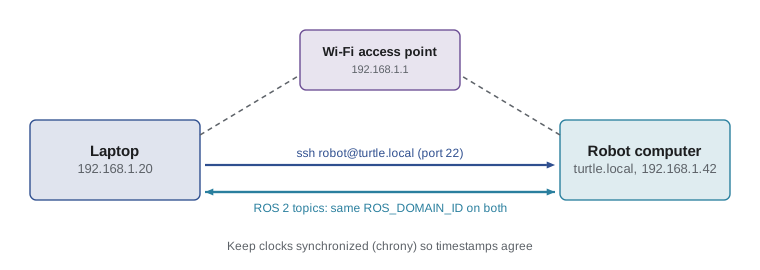
You log in to a robot with SSH, the secure shell, by typing ssh followed by the user and host, as in ssh robot@turtle.local. The first time, SSH asks you to confirm the robot's identity; afterwards it warns you if that identity changes, which protects you from connecting to an impostor. Instead of typing a password every time, create a key pair with ssh-keygen and copy the public key to the robot with ssh-copy-id. You can then disable password logins on the robot entirely, which is much safer for a machine that may sit on shared networks. To copy files, use scp for single files or rsync, which only transfers what has changed and is ideal for keeping a workspace on the robot in step with your laptop.
Robots should be treated as network devices that need security like any other. Change default passwords, keep the system updated, do not expose SSH to the open internet, and remember that anyone who can reach a robot's network may be able to send it commands. ROB-360 returns to robot security in depth.
How ROS 2 finds other computers
ROS 2 programs on different computers find each other automatically. By default ROS 2 uses a middleware standard called DDS, and its implementations announce themselves with multicast discovery messages on the local network, so a node on your laptop can see topics published by a node on the robot without any configuration, as long as both machines are on the same network and use the same ROS 2 distribution. From the Kilted release onward, a different middleware called Zenoh is also fully supported; it uses a small router program instead of multicast, which can work better on large or Wi-Fi networks where multicast is unreliable.
Automatic discovery has a downside in shared spaces such as a university lab: every robot and laptop can see every other one. Two settings control this. The environment variable ROS_DOMAIN_ID gives a group of machines its own number, and only nodes with the same domain ID communicate; the ROS 2 documentation recommends values between 0 and 101. The variable ROS_AUTOMATIC_DISCOVERY_RANGE can limit discovery to the local machine (LOCALHOST), the local network (SUBNET) or turn it off. Set them in .bashrc on every machine in your team so that you do not accidentally drive a classmate's robot.
# on the robot and on your laptop
export ROS_DOMAIN_ID=42
# check the machines can reach each other
ping -c 3 turtle.local
# keep this terminal's nodes on this computer only
export ROS_AUTOMATIC_DISCOVERY_RANGE=LOCALHOST
Clocks matter too. ROS 2 messages carry timestamps, and programs such as the transform library in lesson 10 compare timestamps from different computers. If the robot's clock is two seconds off the laptop's, data will look stale or come from the future. Install a time synchronization service such as chrony on every machine and check that their clocks agree to within a few milliseconds.
Worked problem
Will the camera stream fit over Wi-Fi?
A robot camera produces 640 × 480 color images with 3 bytes per pixel at 30 frames per second. Your Wi-Fi link reliably carries about 80 Mbit/s of real data. Can you view the raw stream on your laptop?
Show solution
- Bytes per image: \( 640 \times 480 \times 3 = 921\,600 \) bytes.
- Bytes per second: \( 921\,600 \times 30 \approx 27.6 \) MB/s.
- In bits: \( 27.6 \times 8 \approx 221 \) Mbit/s.
- That is nearly three times the 80 Mbit/s available, so the stream will lag and drop frames.
Answer: No. Raw images need about 221 Mbit/s. Use compressed image topics, a lower resolution or frame rate, or process the images on the robot and send only results.
Calculations like this explain many puzzling robot behaviors. A visualization that works perfectly with the laptop plugged into the robot by cable becomes jerky over Wi-Fi; a teleoperation command arrives late because the same link is saturated by camera data. Measuring and budgeting bandwidth is a habit you will practice again in lesson 5.
Common mistakes
MistakeRunning robot software with sudo to get past a permission denied error on a serial port.
InsteadAdd the user to the device's group, such as dialout, or install a udev rule; keep robot software running as an ordinary user.
MistakeUsing kill -9 as the normal way to stop nodes.
InsteadUse Ctrl+C or plain kill so nodes can stop motors and close devices; reserve kill -9 for hung processes.
MistakeStarting a long experiment over SSH without tmux and losing it when the Wi-Fi drops.
InsteadRun long jobs inside tmux, or as a systemd service if they must always run.
MistakeWriting a systemd unit that runs ros2 launch without sourcing the ROS 2 and workspace setup scripts.
InsteadSource both setup scripts in ExecStart, and read journalctl -u to diagnose failures.
MistakeLeaving every machine on the default ROS domain in a shared lab.
InsteadAgree on a unique ROS_DOMAIN_ID per team and set it on every machine, or limit discovery.
Summary and key terms
- Each file has an owner, a group and read, write and execute permissions for owner, group and others, written as a string like rwxr-xr-x or an octal number like 755.
- Hardware devices belong to groups such as dialout and video; add users to groups and use udev rules rather than running robot code as administrator.
- Processes have IDs and respond to signals: SIGINT and SIGTERM allow clean shutdown, SIGKILL does not.
- systemd services start robot software at boot; journalctl shows their logs.
- SSH with keys is the standard way to work on a robot remotely; rsync keeps files in step and tmux keeps sessions alive.
- ROS 2 nodes discover each other on the local network; ROS_DOMAIN_ID and ROS_AUTOMATIC_DISCOVERY_RANGE keep teams separate.
- Bandwidth and clock synchronization limit what you can stream and how well timestamps agree across machines.
- Permission bits
- The read, write and execute flags for a file's owner, group and others.
- Octal mode
- A three-digit number such as 755 that encodes permission bits, with read 4, write 2 and execute 1.
- dialout group
- The Ubuntu group whose members may use serial ports.
- udev rule
- A configuration file that sets names, links and permissions for devices when they are detected.
- Process ID
- The number that identifies a running process.
- Signal
- A message from the kernel or another process, such as SIGINT, that asks a process to react.
- systemd unit
- A file describing a service, its dependencies and how to start and restart it.
- SSH
- The secure shell protocol for encrypted remote login and file copying.
- ROS_DOMAIN_ID
- An environment variable that separates groups of ROS 2 nodes on the same network.
- Discovery
- The process by which ROS 2 nodes find each other and the topics they offer.
Practice problems
Work each problem on paper first, then reveal the answer to check.
Convert rwxr-x--- to octal.
Show answer
750: owner 7, group 5, others 0.
What does chmod 644 notes.txt give the owner, group and others?
Show answer
Owner read and write; group and others read only.
Your node reports permission denied opening /dev/ttyACM0. What two steps fix it properly?
Show answer
Add your user to the dialout group with sudo usermod -aG dialout <user>, then log out and back in.
Why might a motor keep turning after you stop its driver node with kill -9?
Show answer
SIGKILL gives the node no chance to send a stop command, so the controller keeps its last command until a timeout.
Which command shows the log output of a service called robot.service?
Show answer
journalctl -u robot.service
Name two advantages of SSH keys over passwords for logging in to a robot.
Show answer
No password to type or guess, and password logins can then be disabled; keys are much harder to brute-force.
Two teams in the same lab see each other's topics. Give two ways to separate them.
Show answer
Use different ROS_DOMAIN_ID values, or restrict discovery with ROS_AUTOMATIC_DISCOVERY_RANGE (or separate networks).
A depth camera sends 640 × 480 images with 2 bytes per pixel at 15 Hz. What bit rate is that?
Show answer
640 × 480 × 2 × 15 ≈ 9.2 MB/s, about 74 Mbit/s.
Why should a robot and a laptop run a time synchronization service?
Show answer
ROS 2 compares message timestamps across machines; unsynchronized clocks make data look stale or future-dated.
What is the difference between scp and rsync for copying a workspace?
Show answer
scp copies everything each time; rsync transfers only changed files and can delete removed ones, so repeated syncs are faster.
Lesson quiz · 5 questions
Score 60% or more to complete this lesson.
Create a free account to save your progress, take quizzes and earn a certificate.